Obsidian
Configuration
Most of my workflow would work without plugins, so dont think of this as a vastly different obsidian experience. Most just make writing just a little faster.
Functional
Latex Suite
Beyond making latex faster than handwritten math, provides a great engine for instant snippets which you can customize. I love it for instant callouts, like the desmos callouts i have in notes like Triple Integrals Practice.
Zotero Integration
If you work with any kind of academic papers this is one of the most useful features of obsidian. Read papers and annotate with zotero, auto import into obsidian extracting all important properties. You can then query with an obsidian base.
Linter
So important for several different things. Auto create date front matter property, move tags to front matter, standardizes your formatting.
Notebook Navigator
Because I use tags profusely this is a must-have. You can view tags just like you would folders, in the same bar and recent files viewing. I mostly use omni search for finding files I want, but for finding by tag this is the best.
You may not like the interface, but brings like 5 different plugins into one.
Excalidraw
great for math diagrams, especially topologies. Works well with mermaid, which I should use more often.
Git
I do a lot of data science, and thus having time series data for my notes is a must. This is the easiest way to back up your vault online with Github, and you get a super rich history of how you write notes over time.
Smart Connections
Bordering on not being that useful because the author is paywalling a lot of features, but this provides simple semantic search Cosine Similarity for any given note.
Nitpicks
Omnisearch
I love it a lot but this isn’t that different from Obsidians built in CMD+O file picker, it just reads note content as well which I never really use. Also has an OCR for searching text in images.
Tab Switcher
Browser style ctrl+tab switching, where it is treated as a “most recent” stack instead of just cycling through all open tabs.
Templater
i don’t think its that useful, most templates I have are just front matter properties
ActivityWatch
for working with the ActivityWatch computer usage daemon.
JupyMd
I dont use this that much, but if I have python codeblocks that are runnable on my website this is a good place to do it. Also converts jupyter notebooks to markdown, a much more token efficient format.
Maps
Made by obsidian team, a map view for obsidian bases. Nice for if you document places.
Paste Image Rename
Simple enough, prompts you to name an image when you paste it in. good for managing images folder in the long term.
Visual
Plugins
Hide Window Controls
Made a simple JS snippet to hide the MACOS traffic lights because I hate them. You will have to look up how to make your own plugin, its pretty easy, but heres the javascript:
main.js
const { Plugin } = require("obsidian");

/** @type {(w: Electron.BrowserWindow) => void} */
function hideWindowControls(w) {
  w.setWindowButtonVisibility(false);
}

module.exports = class extends Plugin {
  onload() {
    if (process.platform === "darwin") {
      hideWindowControls(electronWindow);

      this.app.workspace.on("window-open", (_, { activeWindow }) => {
        hideWindowControls(activeWindow);
      });
    }
  }
};
styles.css
body.mod-macos .workspace-tab-header-container {
  padding-left: 4px !important;
}
Hider
Gets rid of all the elements I dont want. Essential if you come from Neovim and like your clean workspaces.
Vertical Tabs
Arc/Zen style tabs, nice for me so I can hide/unhide when I please.
Persistent Graph: if you want the graph to be sort of useful, this keeps the positions instead of redoing the graph sim every time.
Theme
I use primary as it was easiest to make in My Color Palette, I would also recommend minimal if you like Neovim. See my snippet for making primary different.
Snippets
Complementary menu buttons hider I use this in combination with the plugin, it seems to work when you use both.
.workspace-titlebar {
  -webkit-app-region: drag; /* Allow dragging */
}

.workspace-titlebar-buttons {
  display: none;
}
Main colorscheme
.theme-light {
    --background-primary: #f5f1eb;
    --background-primary-alt: #f5f1eb;
    --background-secondary: #e6dfd6;
    --background-secondary-alt: #e6dfd6;
    --background-modifier-hover: rgba(166, 124, 109, 0.15);

    --text-normal: #2d2520;
    --text-muted: #4a4238;
    --text-faint: #9a8f82;
    --text-on-accent: #f5f1eb;
    --text-selection: rgba(191, 97, 89, 0.2);

    --interactive-accent: #bf6159;      /* Rust */
    --interactive-accent-hover: #a67c6d; /* Secondary */
    --text-accent: #bf6159;
    --text-accent-hover: #a67c6d;

    --link-color: #bf6159;
    --link-color-hover: #a67c6d;
    --link-external-color: #bf6159;
    --link-external-color-hover: #a67c6d;
    --url-color: #bf6159;

    --nav-item-background-active: rgba(191, 97, 89, 0.15);
    --nav-item-text-color-active: #bf6159;
    --background-modifier-active-hover: rgba(191, 97, 89, 0.1);

    --background-modifier-border: #f5f1eb;
    --background-modifier-border-hover: #e6dfd6;
    --interactive-normal: #f5f1eb;
    --interactive-hover: #e6dfd6;

    --hr-color: #4a4238;
    --caret-color: #bf6159;
    --graph-line: #8b7f73;
    --graph-node: #bf6159;

    --color-red: #bf6159;
    --color-orange: #c78d75;
    --color-yellow: #cc9e54;
    --color-green: #869c7a;
    --color-cyan: #56706b;
    --color-blue: #728c99;
    --color-purple: #9d868e;
    --color-pink: #9d868e;
}

.theme-dark {
    --background-primary: #1a1714;
    --background-primary-alt: #1a1714;
    --background-secondary: #2a2520;
    --background-secondary-alt: #2a2520;
    --background-modifier-hover: rgba(197, 155, 141, 0.15);

    --text-normal: #ebe7e1;
    --text-muted: #d4cec7;
    --text-faint: #6b6158;
    --text-on-accent: #1a1714;
    --text-selection: rgba(219, 142, 136, 0.2);

    --interactive-accent: #db8e88;      /* Rust */
    --interactive-accent-hover: #c59b8d; /* Secondary */
    --text-accent: #db8e88;
    --text-accent-hover: #c59b8d;

    --link-color: #db8e88;
    --link-color-hover: #c59b8d;
    --link-external-color: #db8e88;
    --link-external-color-hover: #c59b8d;
    --url-color: #db8e88;

    --nav-item-background-active: rgba(219, 142, 136, 0.15);
    --nav-item-text-color-active: #db8e88;
    --background-modifier-active-hover: rgba(219, 142, 136, 0.1);

    --background-modifier-border: #1a1714;
    --background-modifier-border-hover: #2a2520;
    --interactive-normal: #1a1714;
    --interactive-hover: #2a2520;

    --hr-color: #d4cec7;
    --caret-color: #db8e88;

    --graph-line: #4a4238;
    --graph-node: #db8e88;

    --color-red: #db8e88;
    --color-orange: #deaea0;
    --color-yellow: #e0bc7e;
    --color-green: #aebd9f;
    --color-cyan: #8daeb3;
    --color-blue: #9bb0bd;
    --color-purple: #c9b1b9;
    --color-pink: #c9b1b9;
}

.cm-cursorLayer .cm-cursor {
    background-color: var(--caret-color) !important;
    opacity: 0.6;
}

.markdown-source-view.mod-cm6 .cm-link,
.markdown-source-view.mod-cm6 .cm-hmd-internal-link,
.markdown-preview-view a,
.cm-s-obsidian span.cm-link,
.cm-s-obsidian span.cm-hmd-internal-link {
    color: var(--link-color) !important;
    text-decoration: none !important;
}
Workflow
Inbox and Task Management
Using an Inbox System - this is by far the simplest and most ideal way to manage tasks. I think that Tasknotes in my workflow no longer works for me, as it is simply overcomplex and reduces productivity, I dont need 6 kanban boards for my kind of work.
Please take note that for an inbox system to work, you must utilize stub notes to their fullest. Don’t be afraid of “letting an idea go”, as it will resurface organically in your own exploration and accumulation of novel ideas. Also stub notes will resurface in Passive Obsidian Worktime.
Update 04-16-2026
made a page on Write Stub Notes now, it codifies exactly what is said above with a bit more detail.
- this is also the same motivation behind the idea of excessive Bullet Point Notation.
- bullet point notes convey all the information you need with less words, but also bring a hierarchical approach to the note itself
- I like to think of it like markdown’s own heading hierarchichy, but more efficient. I am trying to use them more often, however sometimes it is just better to stream conciousness.
- inspired by Yana Log Notes ( see here )
Timeseries and Daily Notes
Bit harder and less straightforward. Using the git plugin along with some LLM analysis ( easiest way to go about it, you could do without if you are ok with the time sink ), you can get a better feel for how your notes/habits change over time. I myself made a simple MCP server to complement the obsidian cli for an agent that allows it to see topic topology via total # git diffs for notes with a certain tag:
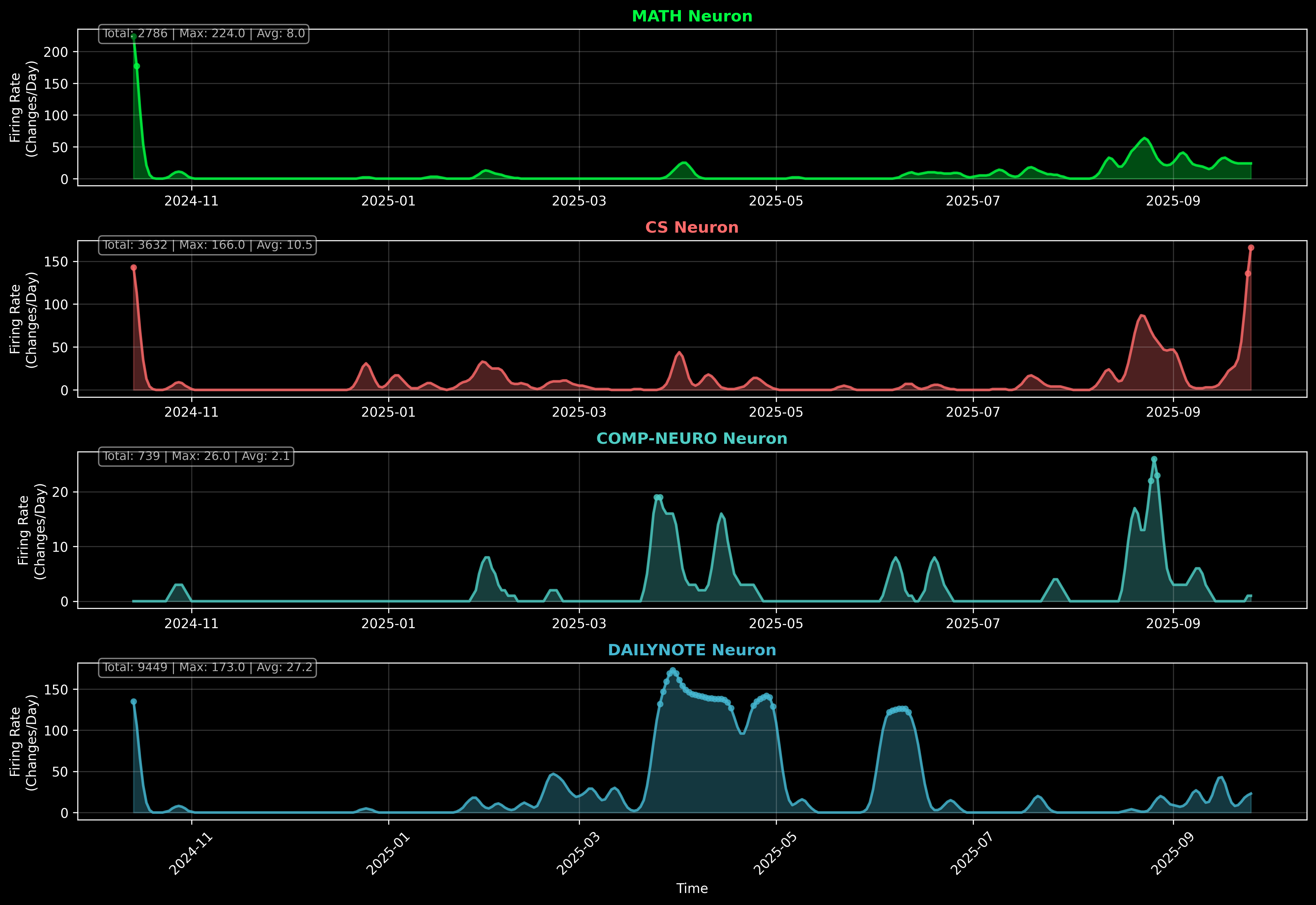
But the better way to do this is to use links to daily notes excessively. Note updates as links to daily notes covers this, but essentially you encode the timeseries nature of returning to old notes as headings with a link to the day you made that change. This has the advantage of allowing you to go back to a certain daily note and see the backlinks as what you did.
Templates
Using templates profusely, from the current ceo’s method, where you don’t really focus on keeping any content within the body of the templates, just the frontmatter.
This allows you to both have the flexibility of an emergent organization system while also getting the compositional and rigid nature of Object Oriented Proggraming, where you assign each note a “structure”, for which certain qualities hold true for all notes of that class. Another useful thing about having a universal category property like class, is I can re use general property names and assign them different use cases in the context of different classes.
For example, Neurotransmitter Template for me has class:neurotransmitter, and because this only gets inserted with the template I know any note of this class has properties like type, upstream, inhibitors/activators, etc. I am reusing general properties here, as across the Neurotransmitter Template and others like Receptor Template/Process Template ALL have a type property, but it is context dependent on the class property.
Frontmatter
Talked a little about it above, but to keep frontmatter efficient look for ways to reuse the same property under different contexts across notes. There are also properties that ALL notes will have:
class:
  - note
created_on: "[[<% tp.date.now('MM-DD-YYYY') %>]]" # up to you if you think this is usefull
tags:
source: # quick references, can be OTHER NOTES or URLs, this is the primary way this note was inspired to be made. e.g. watch a youtube video, import, then the concept note will have a source pointing to that video.
related:
author:
description: # one sentence description of the note, used in website
aliases: # we use aliases for everything
Hierarchical Tags
Tags follow a hierarchical dot notation: comp-neuro/equipment/eeg, cs/data-science, phd/prep/reu. This lets you filter broadly (comp-neuro) or precisely (comp-neuro/equipment/eeg) in the tag panel and in Bases queries.
Notebook Navigator plugin makes these browsable as a folder-like tree. Keep tags structural rather than descriptive, tags describe what a note is, wikilinks describe what it’s about.
Tags are folders, except a note can be in multiple folders
Aliases
Using Aliases More Frequently - aliases are a GREAT way to help link old ideas. Not only makes searching easier, but when typing a name for a link in the [[ menu, you can type the alias and press enter, and it will create the link but with the display name set to the alias you typed. Great for long note names like UMAP, i just typed “umap” and it linked to the full path Uniform Manifold Approximation and Projection.
These also make adding backlinks so much easier. the bets way to link up new/old ideas into a note is to profusely use the backlinks/outgoing links panels, as they have options to find keyword note names in the note content and create the link for you. if a note has aliases, it will also search all notes for that alias keyword as well. I can go to the UMAP note, go to backlinks panel, and find all notes that just have the keyword “UMAP” in their contents and create the link, instead of just searching for “Uniform Manifold Approximation and Projection”, which will never be fully typed out in a note.
Consuming Knowledge
By far my biggest obsidian “moat” in my life. A detailed explanation can be seen in the first note of the series, Consuming and Choosing Content Effectively.
As the current setup stands, I have a lot of information source templates ( youtube template, Book Template, zotero_paper_template ), and VIEWs for these kinds of notes ( Books.base, Youtube.base, Papers.base ).
Each knowledge source is unique, but one thing they all share is the frontmatter property status. This usually follows the form open/in-progress/done from my tasknotes days, but now is treated much more generally and tied to the notes class property. For example, the Medication Template uses the status property for interested/taking/stopping, for Substance Protocol stack tracking.
There is a lot of other little things here, please read the full note Consuming and Choosing Content Effectively!
On a related note
If you have explored my Nootropic Compounds/Neuropharmacology notes at all, I also recommend reading Utilizing Cognition Enhancement Effectively, this is kind of building straight off of Consuming and Choosing Content Effectively. If you really want to dial in your mind, the world of neuropharma might be for you. If you want to get started, I would consider something like TAK-653 and possibly ACD-856/Tropisetron as a starting point.